
Chat Mode turns enabled HandyComfy workflows into a conversational creation interface. Choose Image or Video, enter a prompt, attach any required media, and HandyComfy shows the Features and workflows that match those inputs.
Your connected ComfyUI server still performs the generation. Chat supplies the inputs, uses your saved workflow configuration, and returns the results to the conversation and Gallery.
Start a conversation
- Open the Chat tab.
- Create a new conversation or select an existing one from the hamburger menu.
- Choose Image or Video using the media selector above the input.
- Enter a prompt and attach any required files.
- Review the suggested Feature and workflow.
- Send the request.
Chat · new conversation
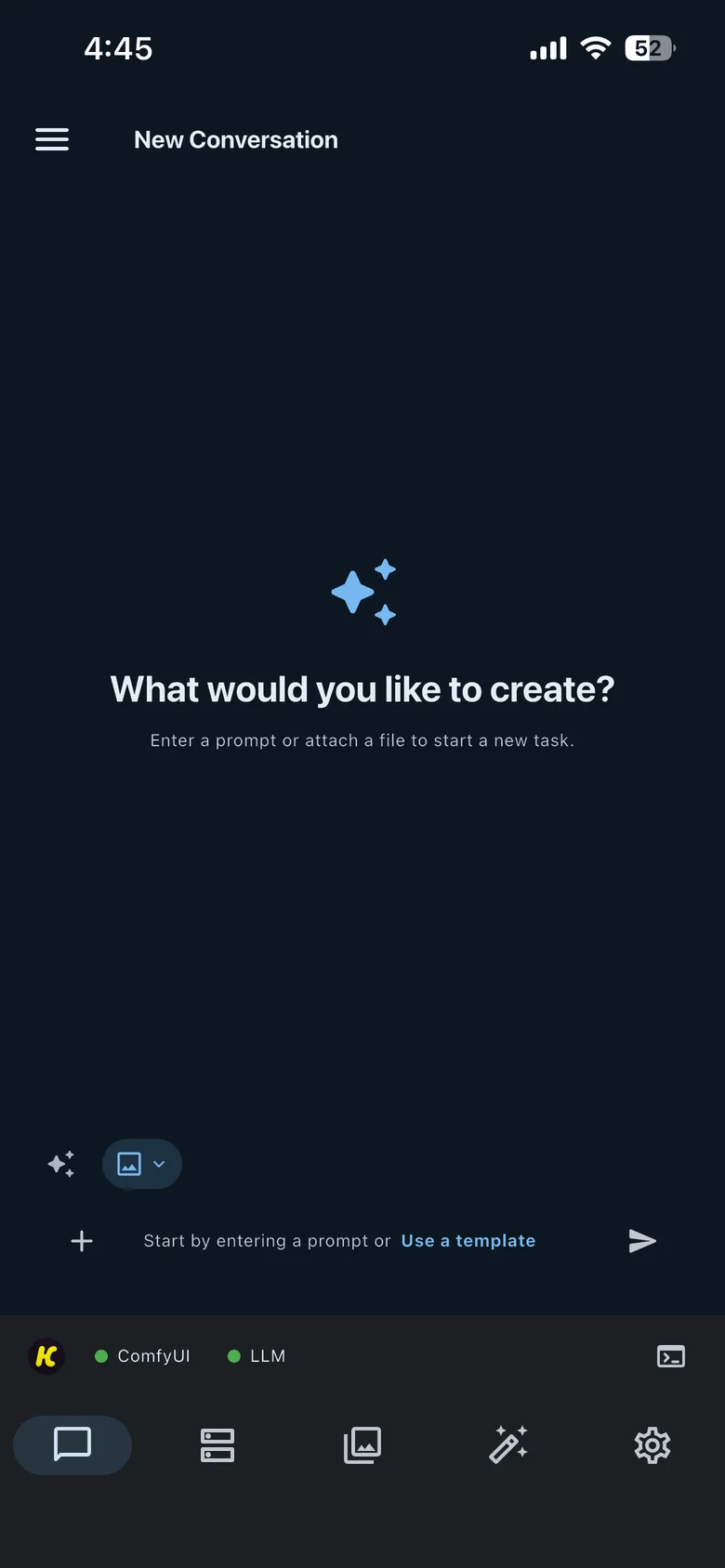
Chat conversations remain available after you restart the app.
How Chat chooses a Feature
The Image/Video selector establishes the broad output type. HandyComfy then uses the prompt and attached media to determine the compatible Feature candidates.
Image mode
| Current inputs | Candidate Feature |
|---|---|
| Text only | T2I |
| One image + text | EDIT or R2I |
| Two images + text | EDIT(2ref) |
| Three images + text | EDIT(3ref) |
| Four images + text | EDIT(4ref) |
Video mode
| Current inputs | Candidate Feature |
|---|---|
| Text only | T2V |
| One image + text | I2V or R2V |
| One image + one audio file + text | AI2V |
| One audio file + text | A2V |
| Two images + text | FFL2V or R2V |
| Optional image, audio, and/or video inputs + text | R2V when supported by the workflow |
When more than one Feature matches, select the Feature button—such as T2I or R2V—and choose from the compatible Features and workflows.
Chat recommends a matching workflow recently used under the same conditions in the current conversation first. Otherwise, it recommends the Feature’s Representative workflow. You can still choose another compatible workflow that is On in Workflow Management.
Chat · input and workflow selection
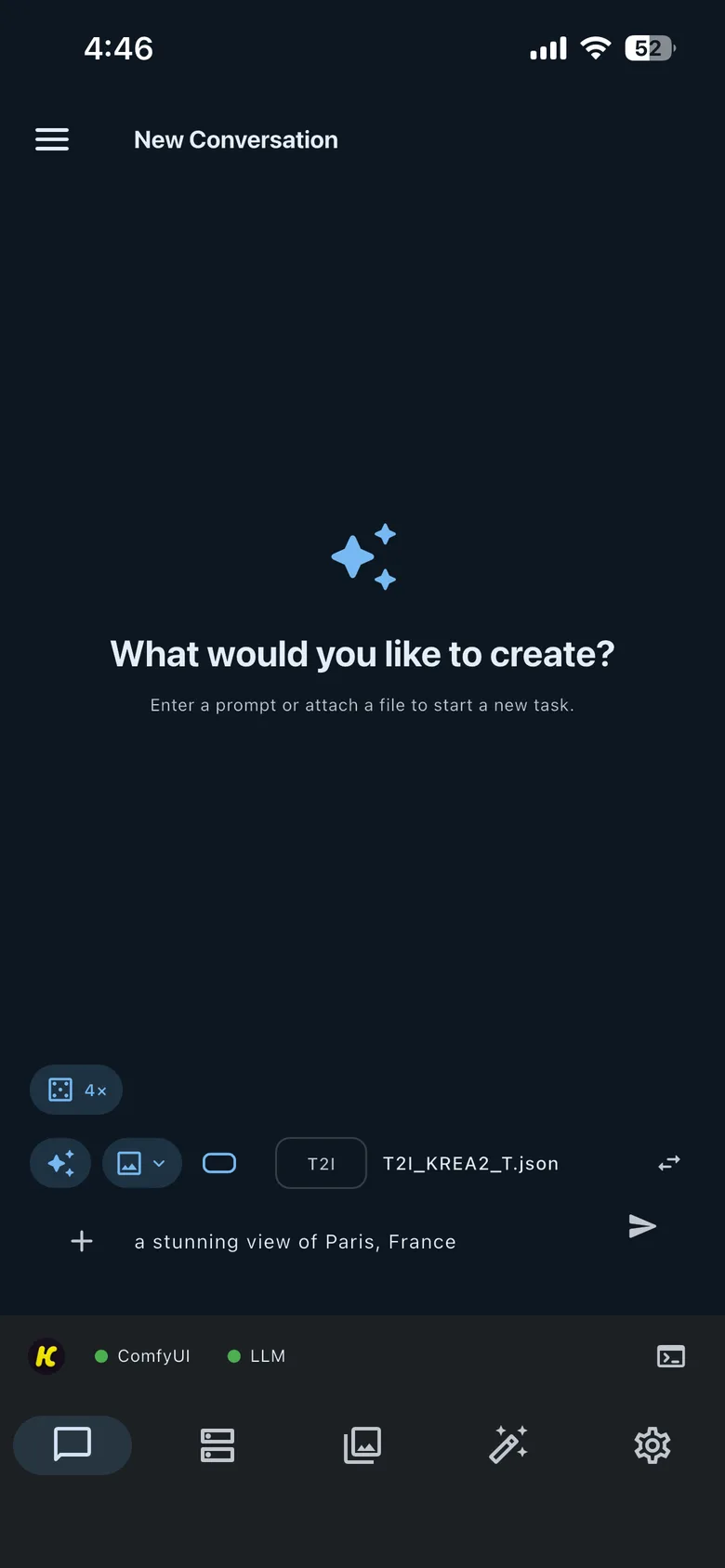
Use the input controls
Attach media
Select the + button to attach supported images, video, or audio. Chat displays the number of attached files next to the input tools.
Select the Image/Video dropdown to change the broad media mode. Changing the mode or attachments can change the available Feature candidates.
Choose an Aspect Ratio
Select the outlined Aspect Ratio control to choose a saved resolution preset. Manage those presets under:
Settings→System Settings→Resolution Settings
Run T2I Seed Hunting
The dice-style 4× control appears only for T2I. Seed Hunting runs the request four times in sequence with the same settings and a different seed, then returns four images.
Preview the compiled prompt
Prompt Templates and other input tools can transform your entries before they reach ComfyUI. Select the eye icon to preview the compiled prompt that the workflow will actually receive.
Enhance a prompt with an LLM
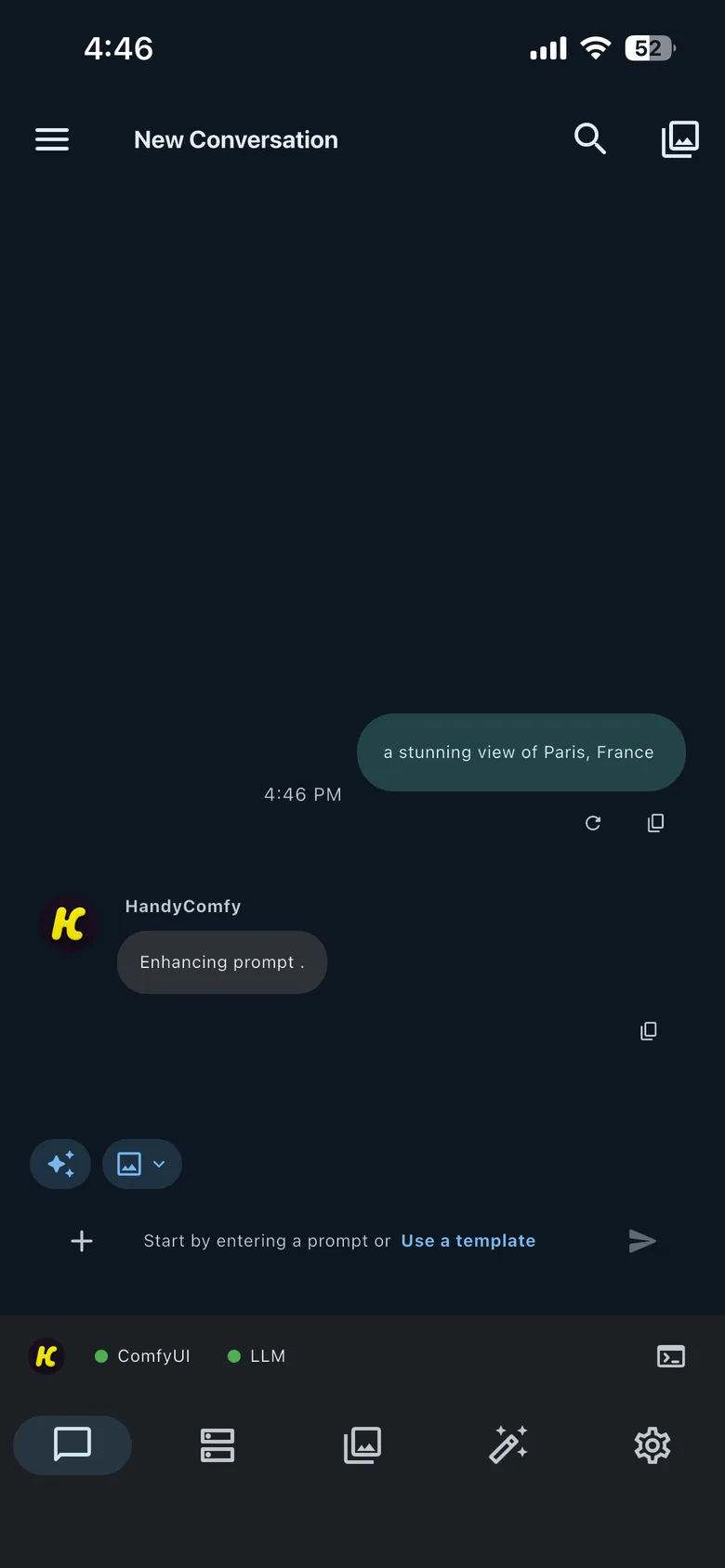
Enable the sparkle control before sending to use Prompt Enhancement.
- Your original prompt remains in the conversation.
- HandyComfy asks the connected LLM server to enhance it.
- The enhanced text appears as a separate HandyComfy message.
- HandyComfy sends the enhanced prompt to the selected ComfyUI workflow.
You can expand or collapse the enhanced message. Prompt Enhancement is unavailable when no LLM server is connected.
Chat · enhancing
Chat · enhanced prompt
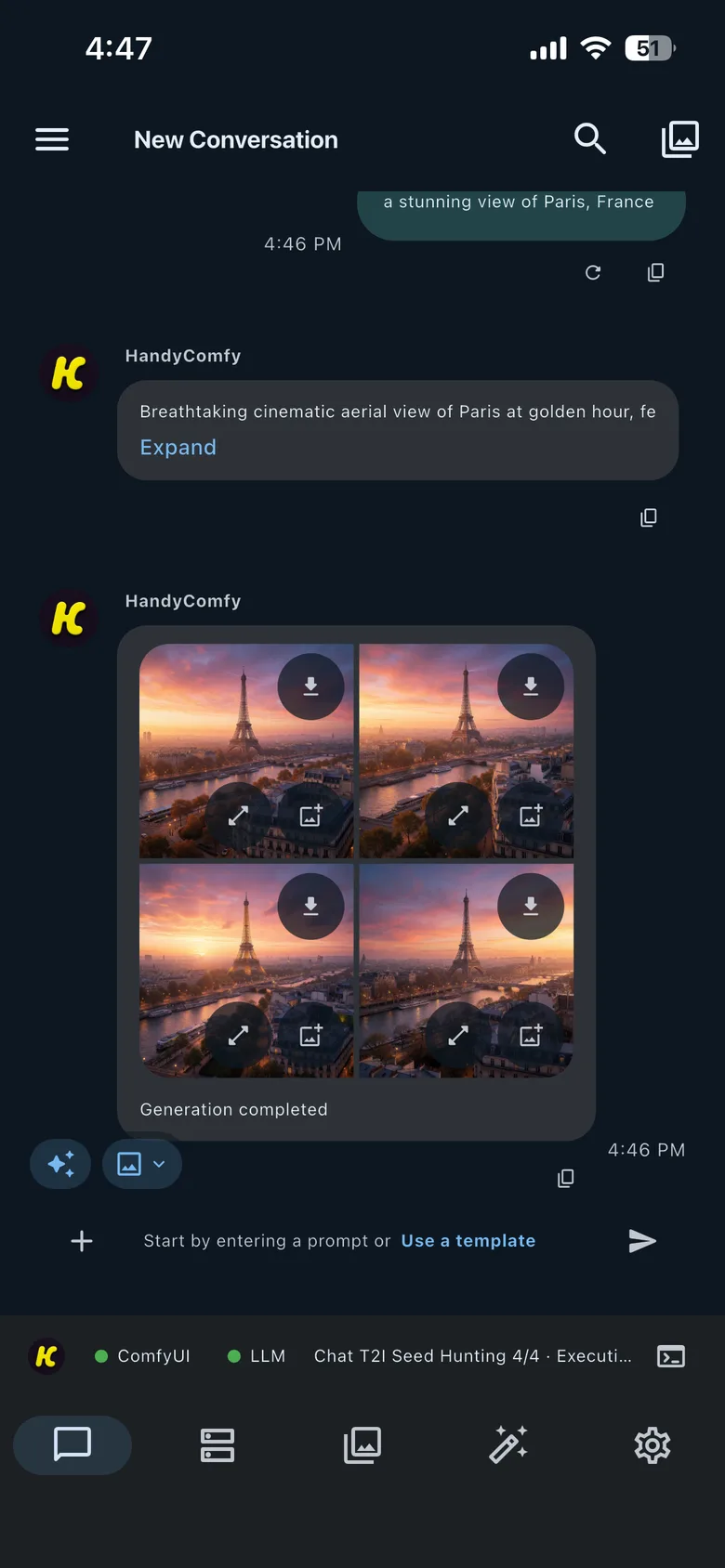
Monitor or cancel generation
After you send a request, Chat reports queue state, the active node, progress, preview output, and completion as that information becomes available.
You can cancel an active execution from the Chat progress/preview controls.
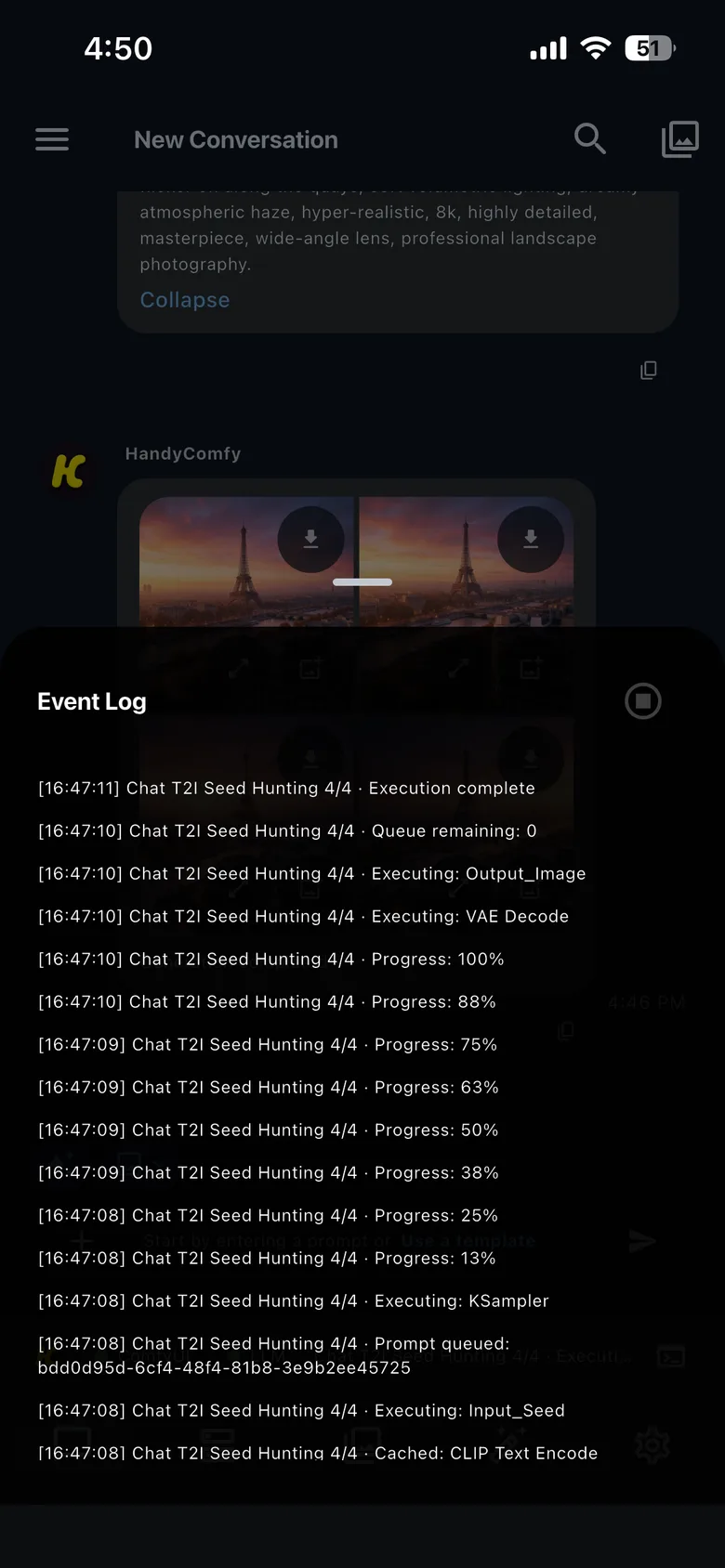
Select the bottom execution status or terminal icon to open Event Log. The log shows timestamped queue, node, progress, and completion messages. You can also cancel the active execution from this panel.
Chat · Event Log
Work with generated results
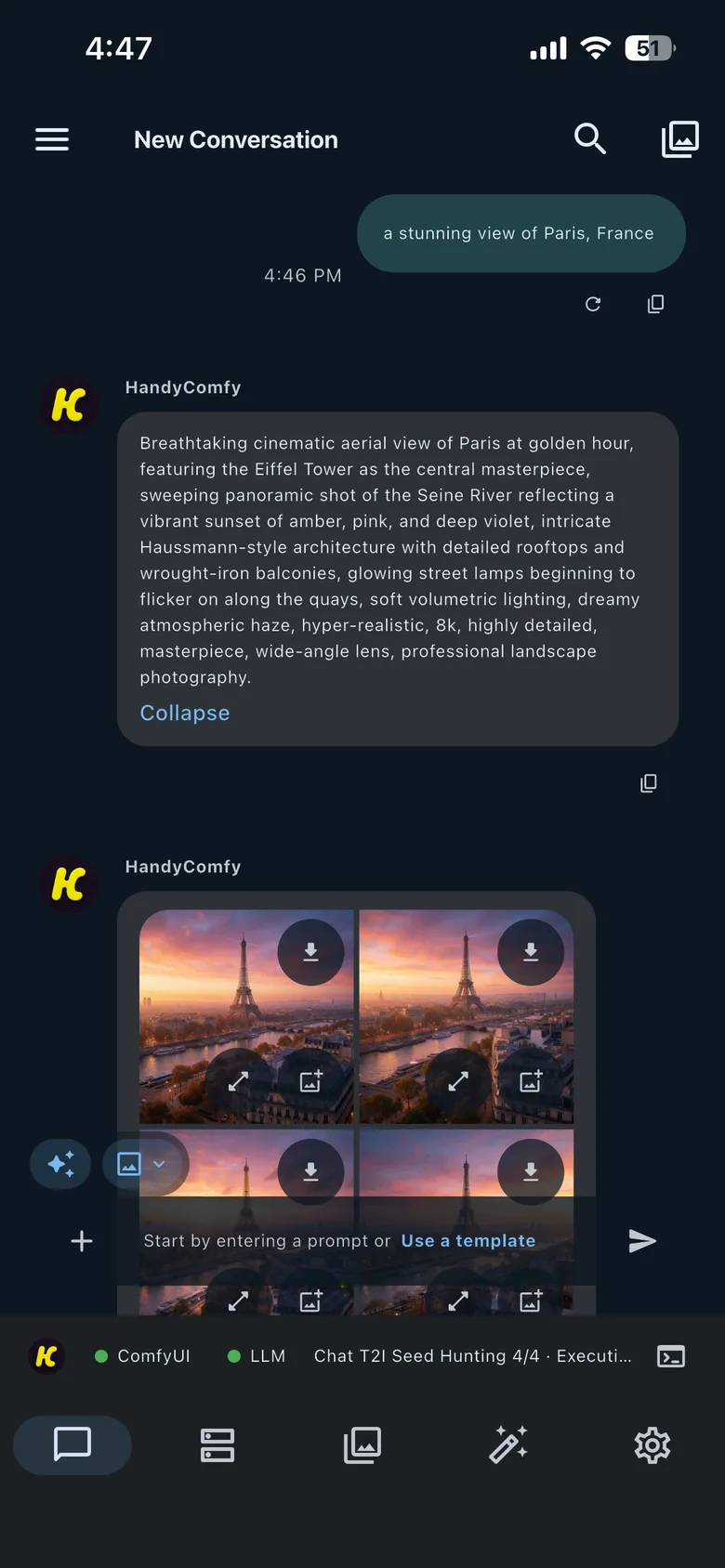
Completed results appear as media cards in the conversation and are saved automatically to HandyComfy’s Gallery.
| Result control | Action |
|---|---|
| Download | Save the HandyComfy media to the phone’s device gallery. |
| Full screen | Open an enlarged media viewer. |
| Image + | Attach that generated image directly to the current Chat input. |
If one request generates several results, HandyComfy saves each media item separately in Gallery.
Chat · completed generation
Use a Prompt Template
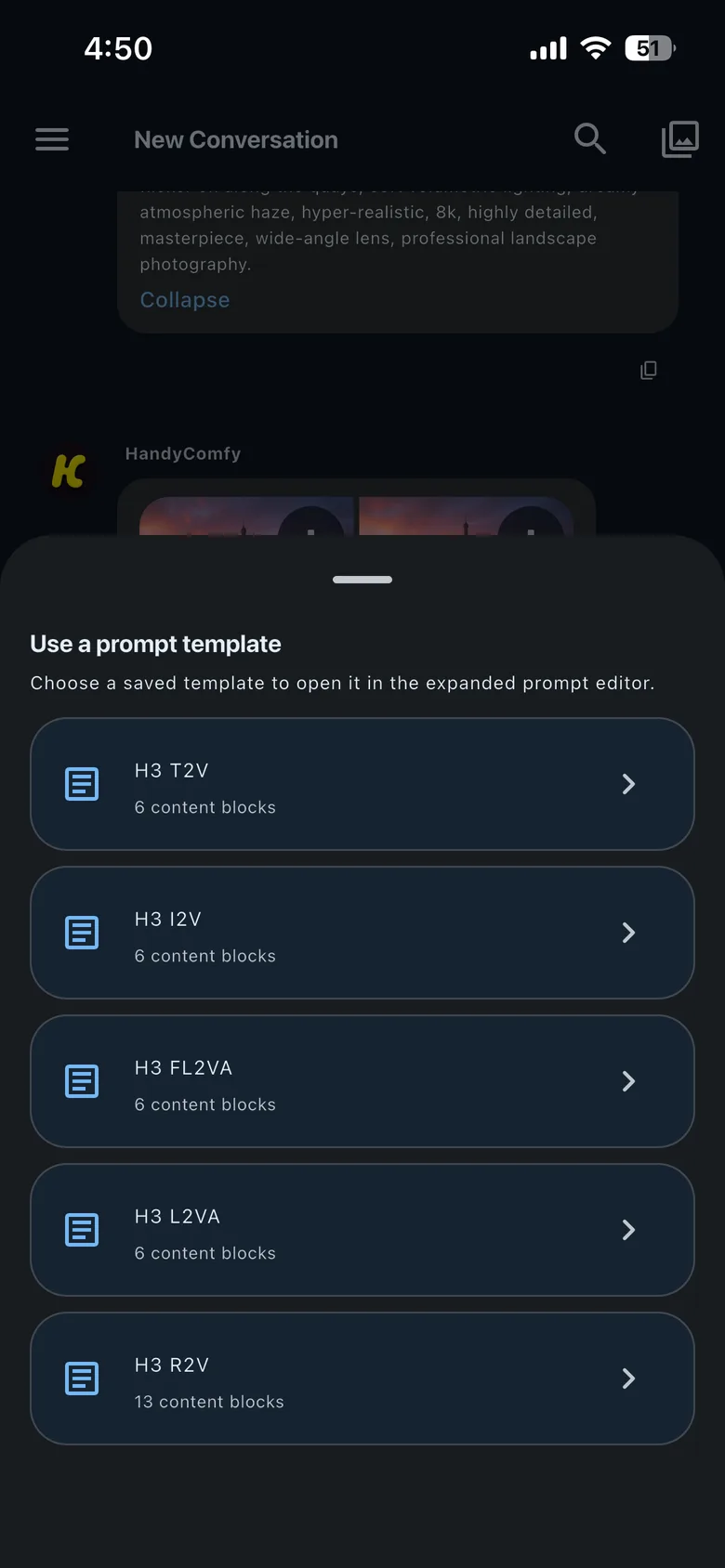
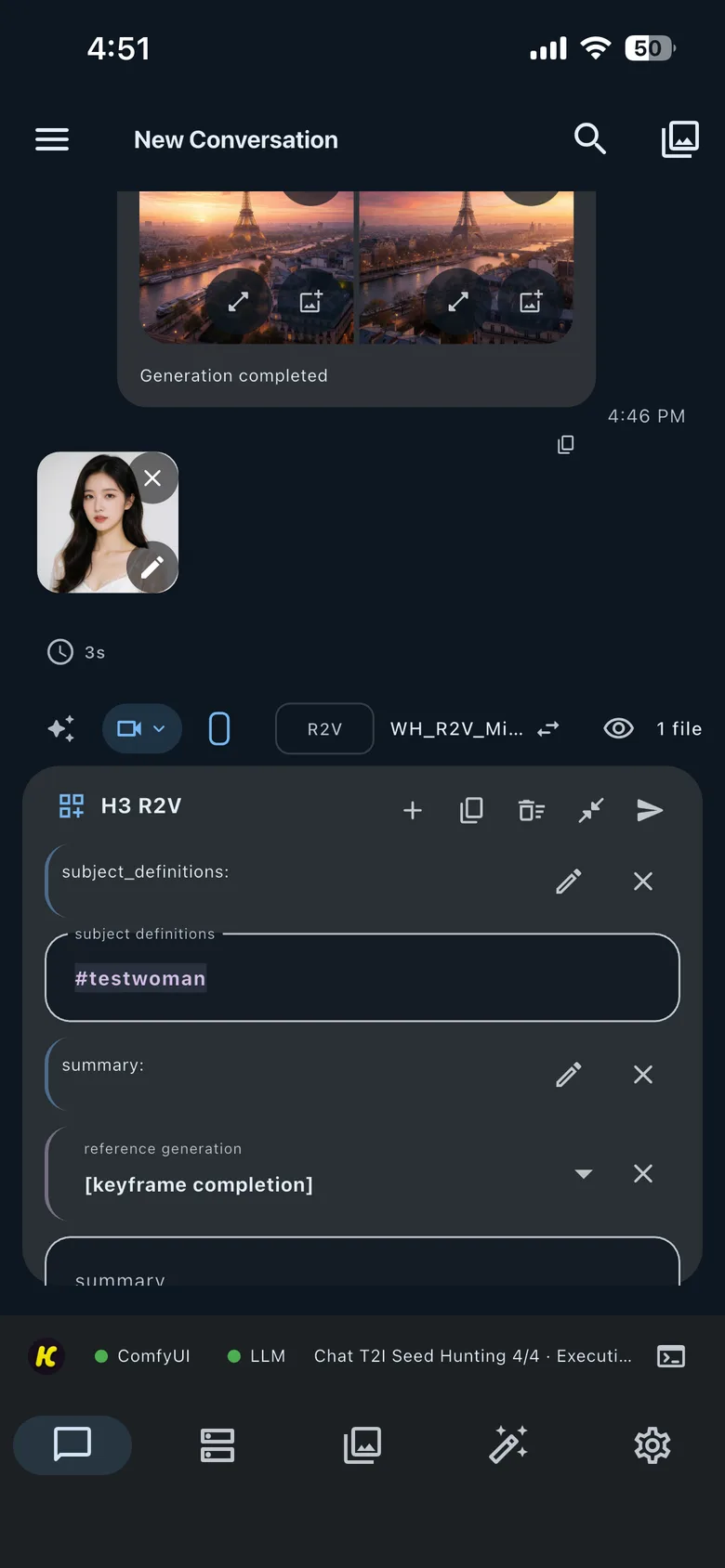
Select Use a template to open your saved Prompt Templates. Choosing one opens its content blocks in the expanded prompt editor so you can complete or adjust the values before sending.
Chat · saved templates
Chat · template editor
Create or edit reusable templates at:
Settings→Prompt Input Tools→Prompt Template Management
Manage and search conversations
Open the hamburger menu to:
- create a new conversation
- select an existing conversation
- rename or delete a conversation
- search the conversation list
The search icon at the top of an open conversation searches messages inside that conversation. It does not search the complete conversation list.