
HandyComfy runs workflows on your own ComfyUI server. The model files therefore remain in your ComfyUI environment; HandyComfy reads the choices available there and gives you mobile controls for selecting them.
Depending on the workflow, these choices can include a diffusion model, text encoder, video or audio VAE, and other values exposed by model-loader nodes.
Select models for a workflow
- Connect the ComfyUI server you want to use.
- Open the workflow in the Workflow tab or from Workflow Management.
- Select Model under Workflow Settings.
- Review every model node and its fields.
- Select the search button beside a field to choose a value from the connected server.
The search results match the choices that the active ComfyUI server exposes for that node and field.
Workflow Settings · Model
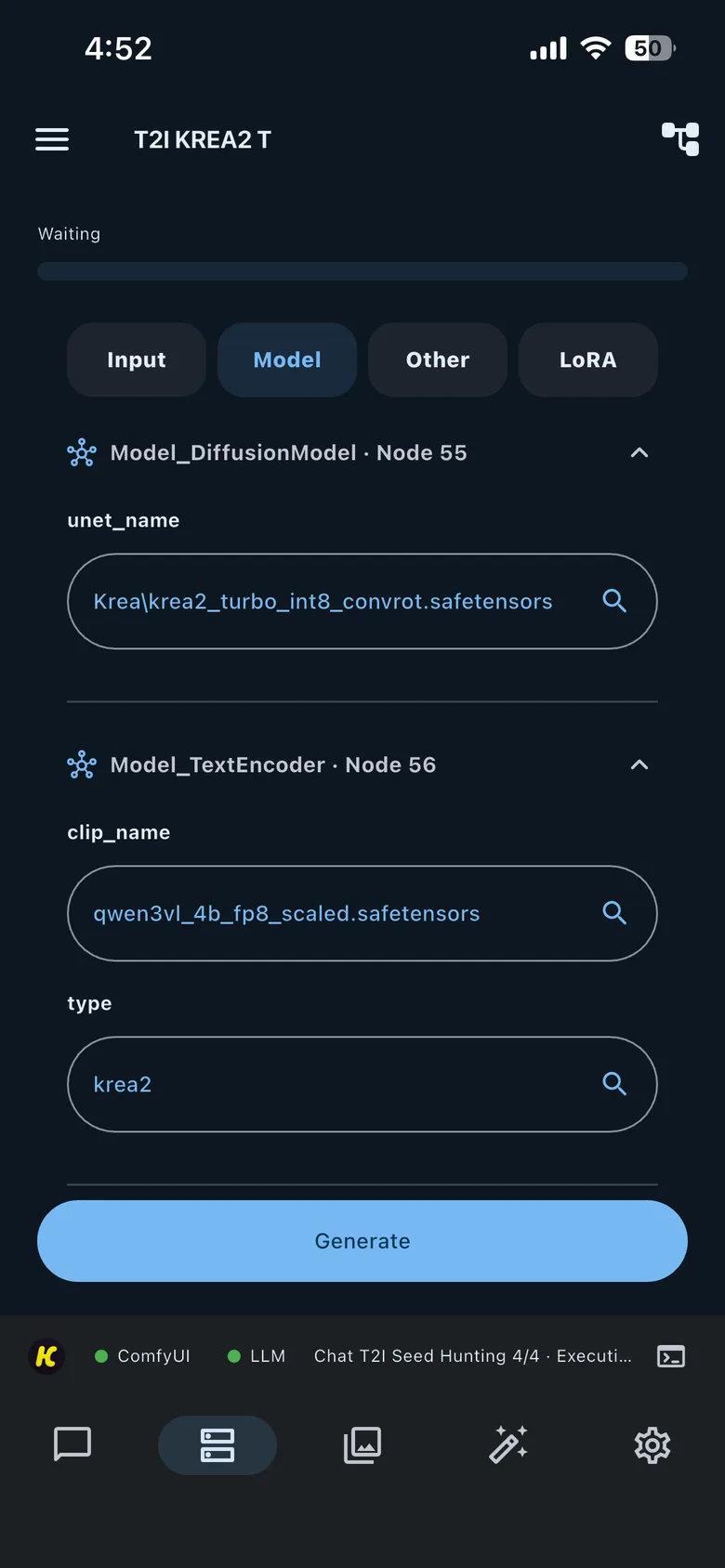
One node can expose several editable fields. In the example above, the Text Encoder node exposes both clip_name and type; review and set each field independently.
Understand model-role mapping
HandyComfy attempts to identify model-loader nodes during import. Exact Node Naming Convention titles make this automatic mapping more reliable.
The convention is not required for every loader. In Workflow App Builder, you can select a model-loader node and assign its model role manually.
After a manual assignment, return to the Model tab and verify that the expected fields and choices appear. HandyComfy does not define a dependable fallback for every incorrectly assigned custom node.
How HandyComfy remembers selections
Model selections are stored for the workflow and remain after you restart the app. Workflow Mode and Chat use the same stored configuration.
HandyComfy remembers those values separately for each:
- Workspace Profile
- ComfyUI server
For example, the same workflow can use one diffusion model on Server A and another on Server B. When you return to a server for which you have already chosen values, HandyComfy restores that server’s selections.
This lets one workflow adapt to different ComfyUI installations without replacing every server-specific choice each time you switch.
Refresh newly installed models
Models newly installed in ComfyUI normally appear in HandyComfy automatically. If a new model is not listed:
- Run the ComfyUI server connection test, or tap the ComfyUI connection indicator in HandyComfy’s bottom status bar.
- Open the model search again.
- If the model still does not appear, restart HandyComfy to force the server model list to load again.
Also confirm that you refreshed the same ComfyUI server on which the model was installed.
Resolve a missing model
Before generation, HandyComfy checks whether the selected model values are available on the active server.
If one or more values are missing, HandyComfy blocks execution and opens Workflow cannot run. The message identifies each unavailable node, field, and selected value. It can report workflow models and app-level LoRAs together.
Pre-run validation · missing models
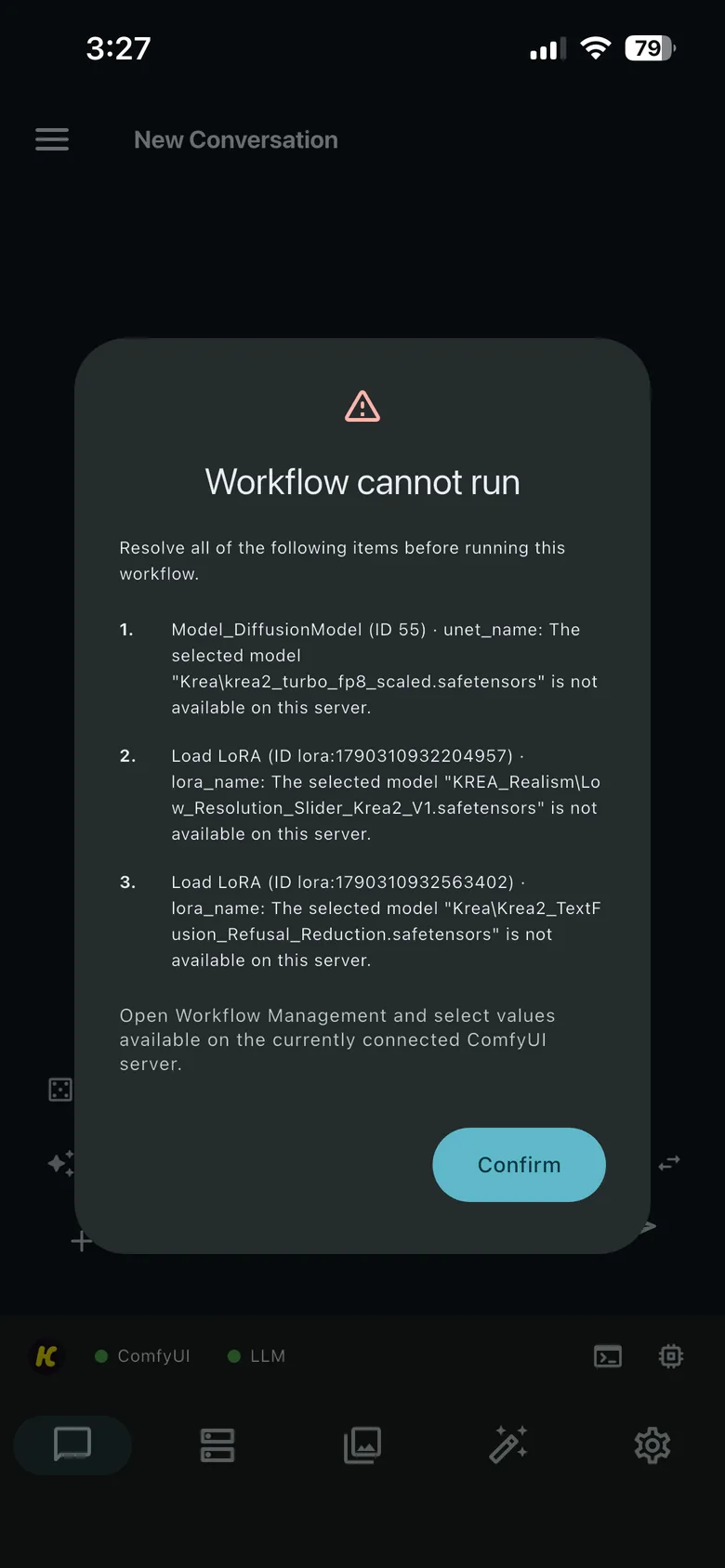
To resolve the warning:
- Note every node and field listed in the dialog.
- Open the workflow from Workflow Management or the Workflow tab.
- In Model, replace missing workflow model values with choices from the active server.
- In LoRA, replace or remove any missing app-level LoRA selections.
- Run the workflow again.
If a model should be present but search cannot find it, follow Refresh newly installed models.
Choose compatible components
HandyComfy checks whether a selected model exists on the active server. It does not verify that your Diffusion Model, Text Encoder, VAE, and other components are mutually compatible.
Choosing a compatible combination remains your responsibility. The default model values displayed when you first install a workflow provide a useful starting point, especially for a prepared Workflow Hub workflow.