
Gallery provides tools for organizing generated media, moving it between Workspace Profiles, reusing it in Chat, and saving a copy outside HandyComfy.
Open the result actions
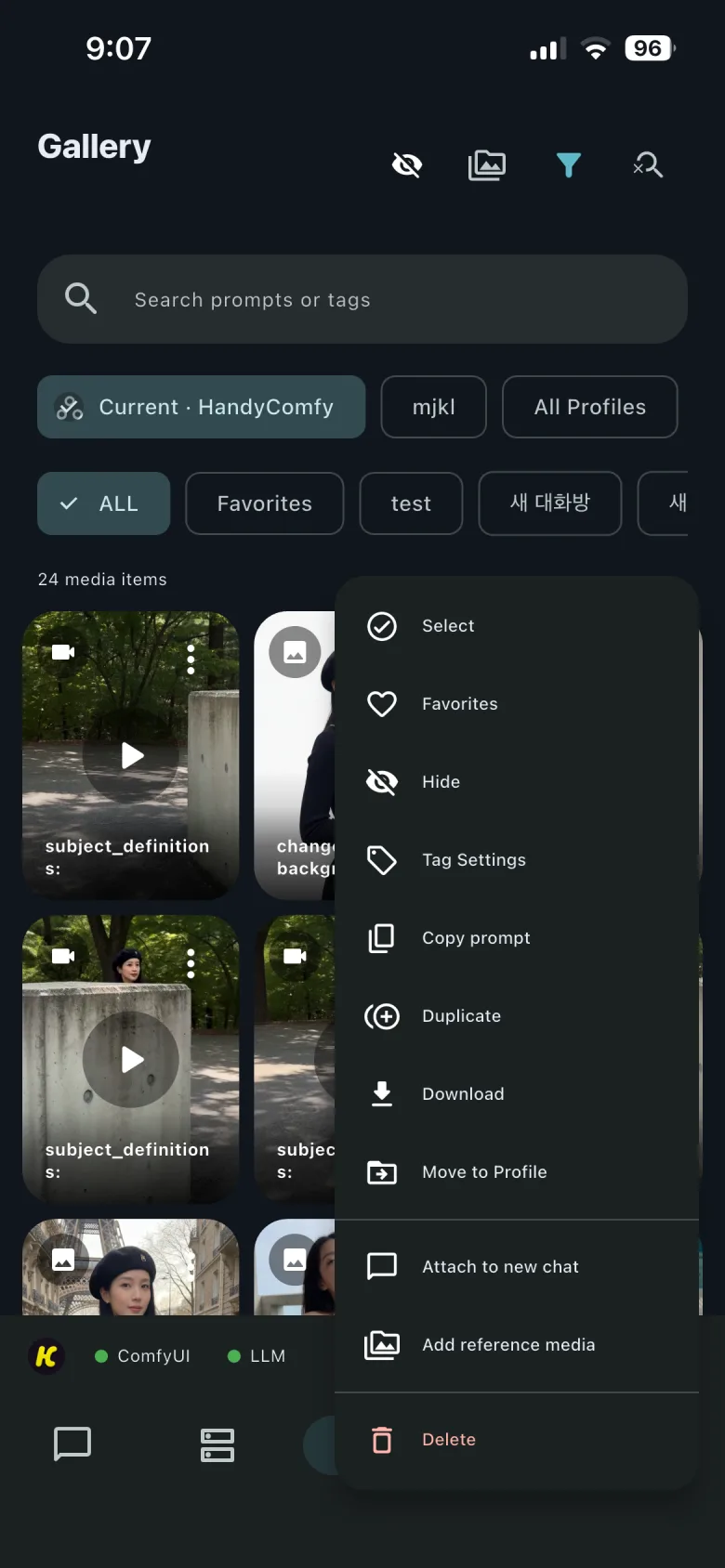
Select the three-dot menu on a Gallery item to see its actions. To enter selection mode, touch and hold an item or choose Select from this menu.
Gallery · result options
Organize media
| Action | What it does |
|---|---|
| Favorites | Add or remove the item from the Favorites filter. |
| Hide | Conceal the item from the normal Gallery grid. |
| Tag Settings | Assign and manage the item’s tags for filtering. |
| Duplicate | Create another Gallery item from the selected media. |
| Move to Profile | Move the item to another Workspace Profile. |
Use the visibility control at the top of Gallery to show or conceal hidden items. You can also manage hidden media at:
Settings→System Settings→Hidden Items
Select Favorites or one of your tags in the Gallery filters to collect related results.
Reuse a result
| Action | What it does |
|---|---|
| Copy prompt | Copy the prompt stored with the item. |
| Attach to new chat | Start a new Chat conversation with the media attached. |
| Add reference media | Add the item to Reference Media Management for prompt-tool reuse. |
The stacked-image control at the top of Gallery is a shortcut to Reference Media Management. It is separate from the per-item Add reference media action and from selection mode.
Share or save outside HandyComfy
Use Share in the detail viewer to open the phone’s system share sheet.
Choose Download to save a copy to the phone’s device gallery. This does not remove the result from HandyComfy.
To save every new result to the device automatically, enable Save Images to Device under System Settings. Although the setting name refers to images, the confirmed behavior applies to both generated images and videos.
Crop or rotate an image
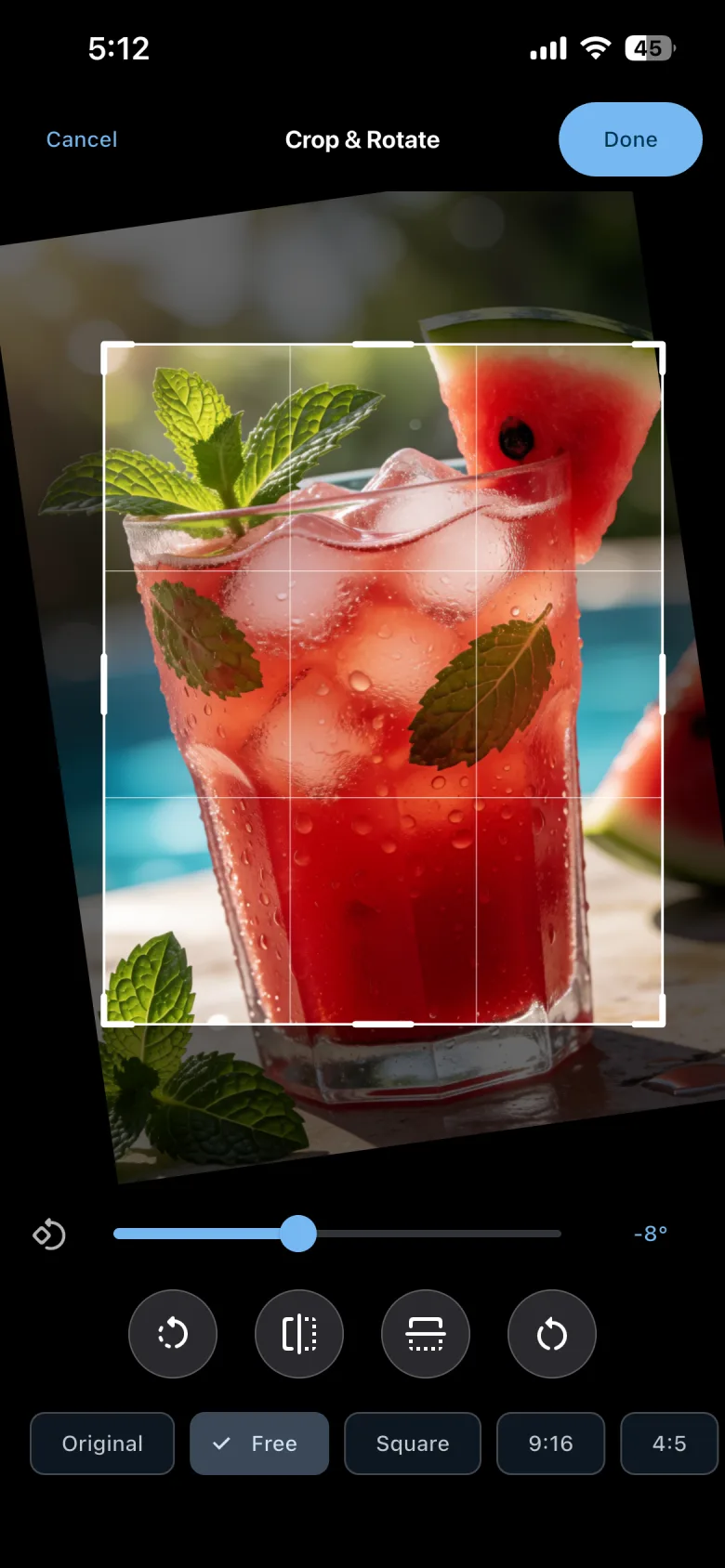
The Crop and Rotate editor is available for images. It includes:
- a movable crop area
- Original, Free, Square,
9:16, and4:5aspect choices - an angle slider for adjustments up to 45 degrees clockwise or counterclockwise
- 90-degree rotation controls
- horizontal and vertical flip controls
- a reset control that clears the current edits
Select Done to save the edited result as a new Gallery item. The original image remains unchanged. Video editing is not available in this editor.
Gallery · Crop and Rotate
Delete a result
Choose Delete to remove the file from HandyComfy’s internal Gallery.
Deleting a Gallery item does not remove:
- a copy already saved to the phone’s device gallery
- output stored on the connected ComfyUI server
Make sure you have downloaded or shared any copy you want to keep before deleting the HandyComfy item.