
HandyComfy is a mobile companion and controller for ComfyUI. You continue to build and maintain workflows in ComfyUI, then use HandyComfy to run and interact with those workflows from a phone or tablet.
The desktop-to-mobile relationship
ComfyUI and HandyComfy have different jobs:
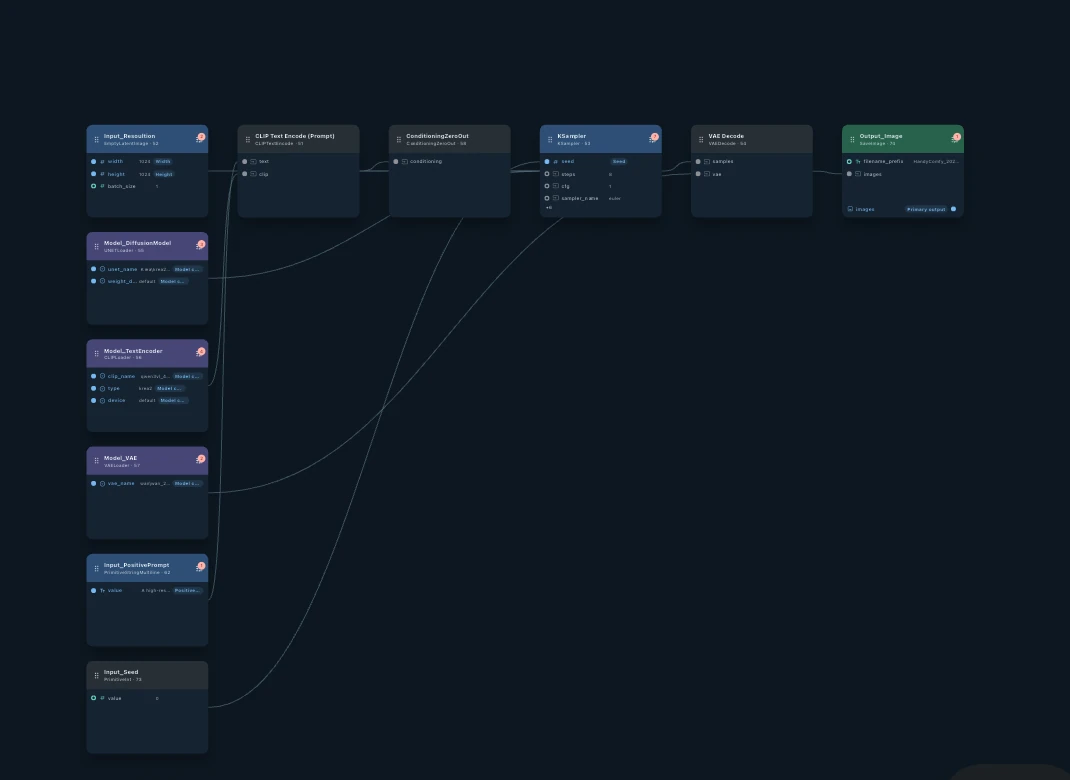
- ComfyUI is the source. It is where the workflow graph, nodes, models, and generation environment live.
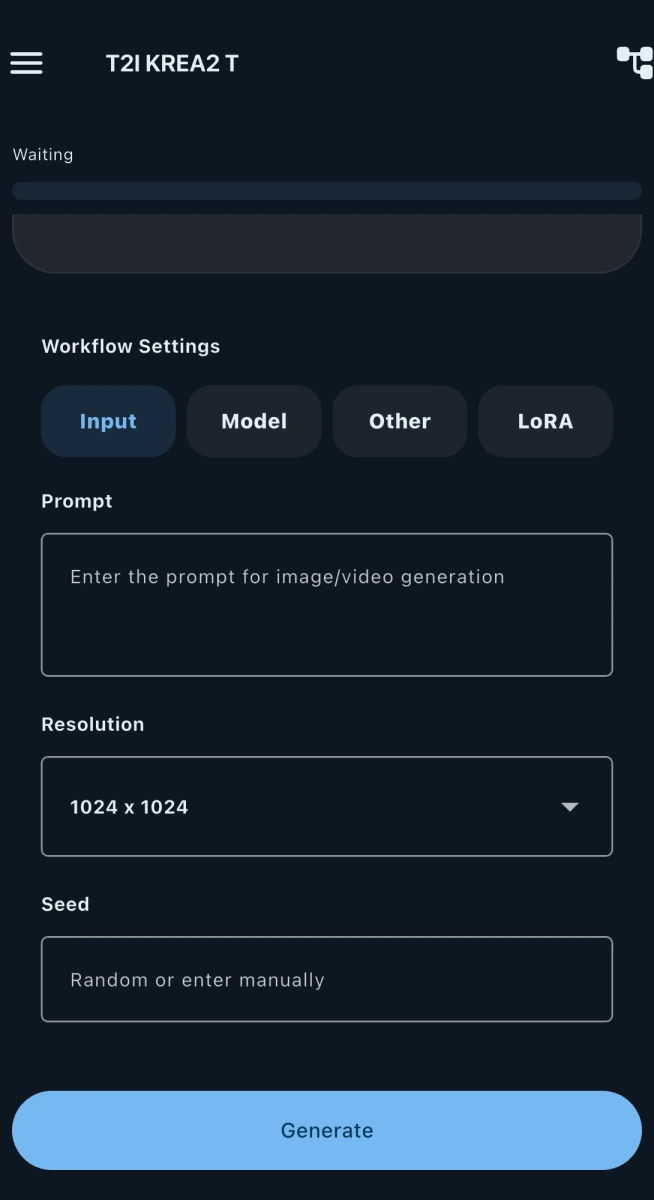
- HandyComfy is the mobile control surface. It presents the parts of a configured workflow that are useful while running it.
- Your system performs the generation. HandyComfy connects to the ComfyUI instance you provide; it is not a hosted GPU service.
Source · ComfyUI desktop
Target · HandyComfy mobile
What you can do
The current product areas represented in this documentation are:
- Workflow Mode for running workflows through focused input, model, LoRA, and other configured controls.
- Chat Mode for matching prompts and media inputs to configured workflows through a conversational interface.
- Gallery for browsing generated images and videos.
- Local or remote connection to a ComfyUI system that you operate.
What HandyComfy does not replace
HandyComfy is not a mobile node editor and does not replace ComfyUI. Build complex workflows, install models and custom nodes, and maintain the generation environment on the ComfyUI side. Use HandyComfy when you want those workflows to become more convenient mobile tools.
A typical first run
- Install HandyComfy on a supported mobile device.
- Connect the app to your ComfyUI instance.
- Make a workflow available in HandyComfy and review its mobile controls.
- Set the inputs you need and run the workflow.
- Browse the generated result in Gallery.
The exact installation destinations and some workflow-import details still require product confirmation. The guides flag those gaps instead of guessing.
Continue
- Install HandyComfy
- Generate your first image
- Connect to ComfyUI for detailed connection setup
- Browse all documentation