
Open a Gallery item to inspect it at a larger size, move through nearby results, and review the generation details HandyComfy saved with the media.
Navigate the viewer
Select a result in the Gallery grid to open the detail viewer. You can then:
- swipe left or right to move between results
- select an item in the thumbnail strip to jump directly to it
- use the bottom actions to share, favorite, inspect, edit, or delete the current item
Videos open in the same viewing experience and can be played from the viewer.
Gallery · image viewer
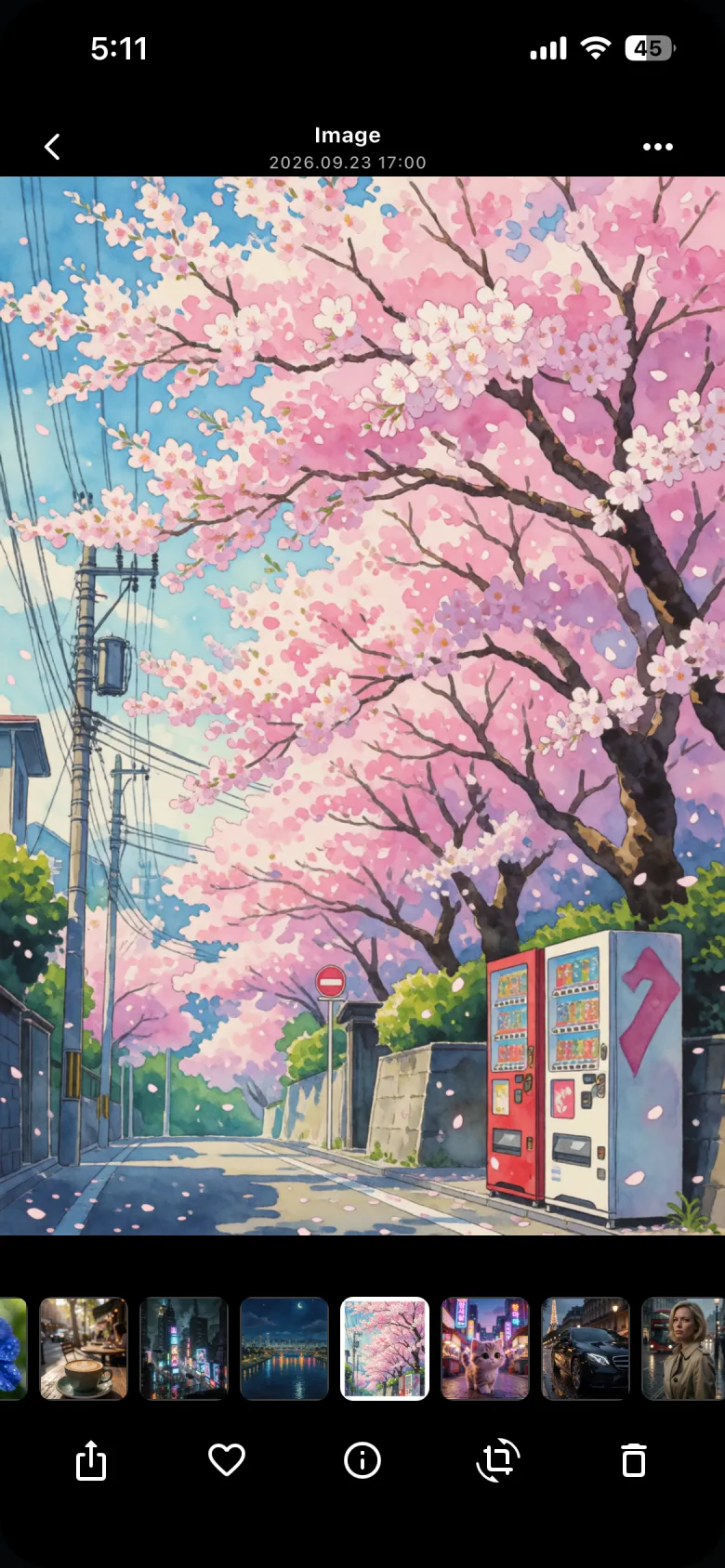
Gallery · another result

View result information
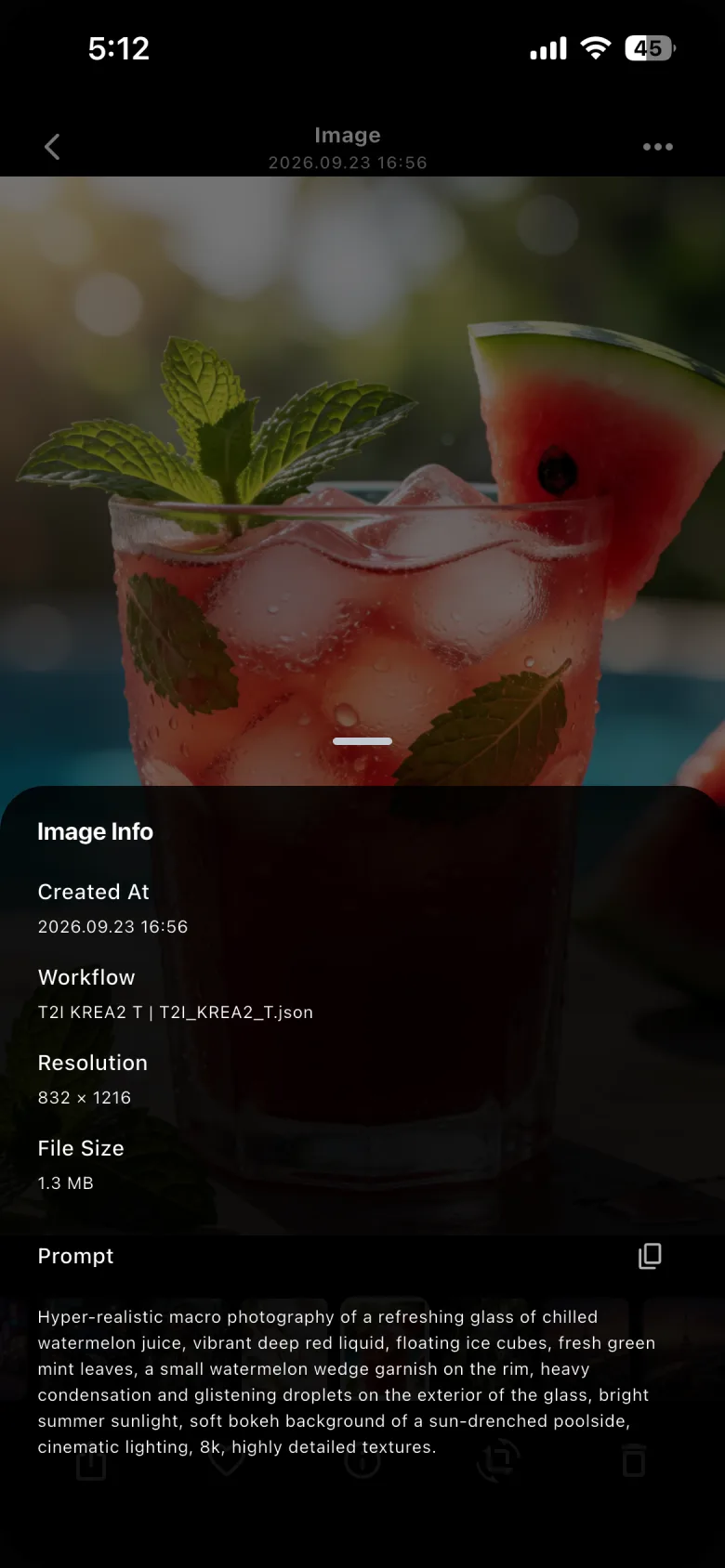
Select the information control to open the media information panel. Depending on the result, the panel shows the confirmed stored details:
| Detail | Meaning |
|---|---|
| Created At | When the Gallery item was created. |
| Workflow | The HandyComfy workflow used for the result. |
| Resolution | The result’s pixel dimensions. |
| File Size | The size of the stored media file. |
| Prompt | The prompt associated with the result. |
Use the copy control beside the prompt when you want to reuse its text.
Gallery · image information
Reuse what you find
The detail viewer lets you mark the result as a Favorite or share it through the phone’s system share sheet. For prompt copying, Chat attachment, reference-media reuse, profile moves, and other organization tools, open the item’s three-dot menu from the Gallery grid.