
A workflow defines the nodes, models, inputs, and processing steps that ComfyUI runs. HandyComfy does not replace that workflow graph. It imports or installs the workflow and presents its useful controls on your phone or tablet.
Your connected ComfyUI system still owns the execution environment and performs the generation.
How a workflow moves into HandyComfy
The basic lifecycle is:
HandyComfy currently supports three ways to add a workflow:
- Install a prepared workflow from Workflow Hub.
- Import a saved workflow or recent run from a connected ComfyUI server.
- Import a regular or API-format ComfyUI JSON file.
See Import a workflow for the complete procedures.
Category and Feature
HandyComfy describes the complete workflow at two levels.
Category
Category is the broad media grouping:
- Image
- Video
- Other
Feature
Feature describes the task performed by the workflow. Examples include:
T2Ifor text to imageT2Vfor text to videoI2Vfor image to videoR2Vfor reference to videoEDITand reference-count variants such asEDIT(2ref)UPSCALE
During import, HandyComfy may suggest a Feature from the workflow filename. You confirm or correct that suggestion before saving, and you can edit it later.
Manage all saved workflows
The All tab in Workflow Management groups every stored workflow by function. A workflow can remain installed without being available for daily use.
Workflow Management · All
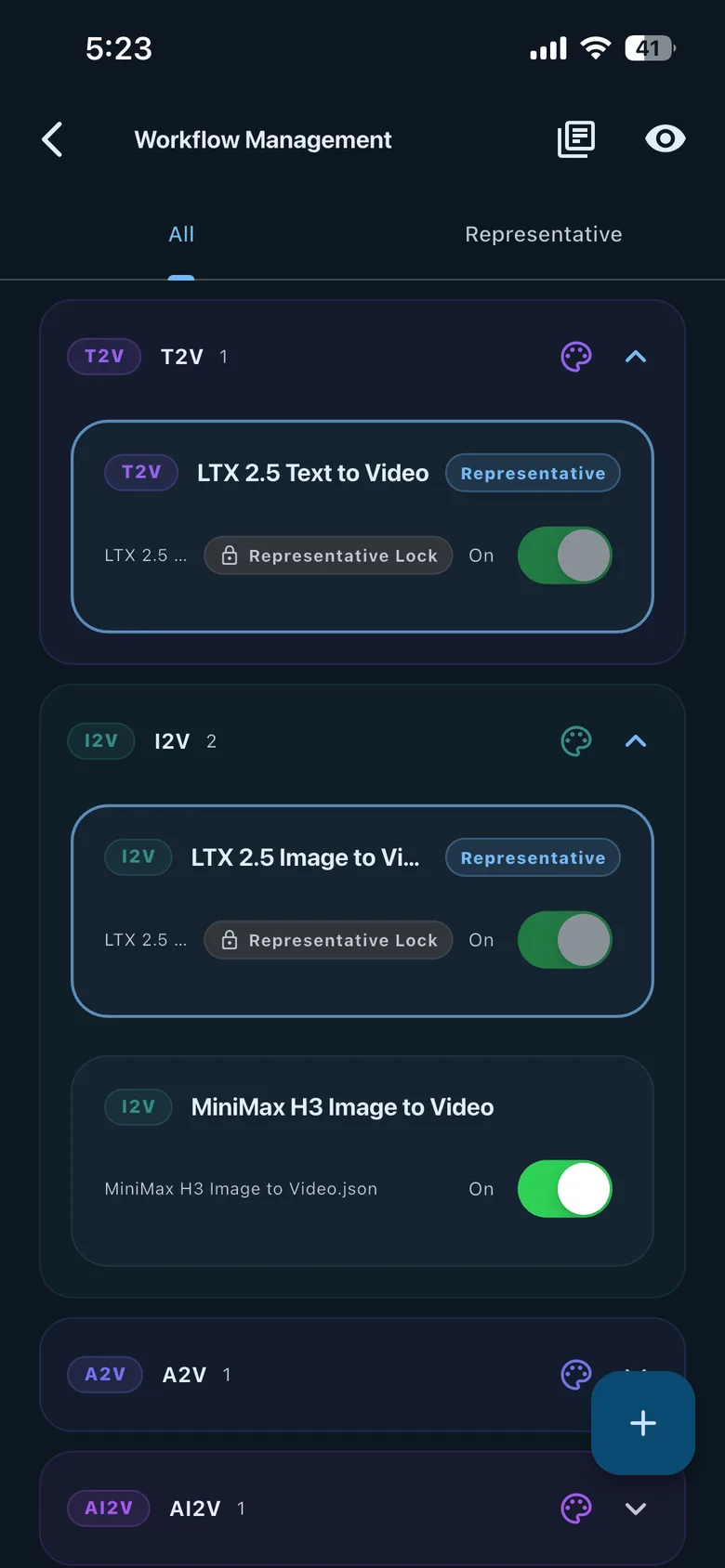
Each saved workflow has an On/Off state:
- On: the workflow can be selected and used in Chat and the Workflow tab.
- Off: the workflow remains downloaded in HandyComfy but is hidden from selection and cannot be run from those tabs.
Turning a workflow Off does not delete it. Newly imported workflows are On by default.
Choose Representative workflows for Chat
Chat considers the current input state—such as the selected mode, text prompt, and attached media—to determine which workflow feature fits the request.
For example:
- An image request with one attached reference image may match
EDIT(1ref). - A video request with one attached image may match an
I2VorR2Vfeature.
The Representative tab lets you choose the workflow Chat should recommend first for each feature.
Workflow Management · Representative
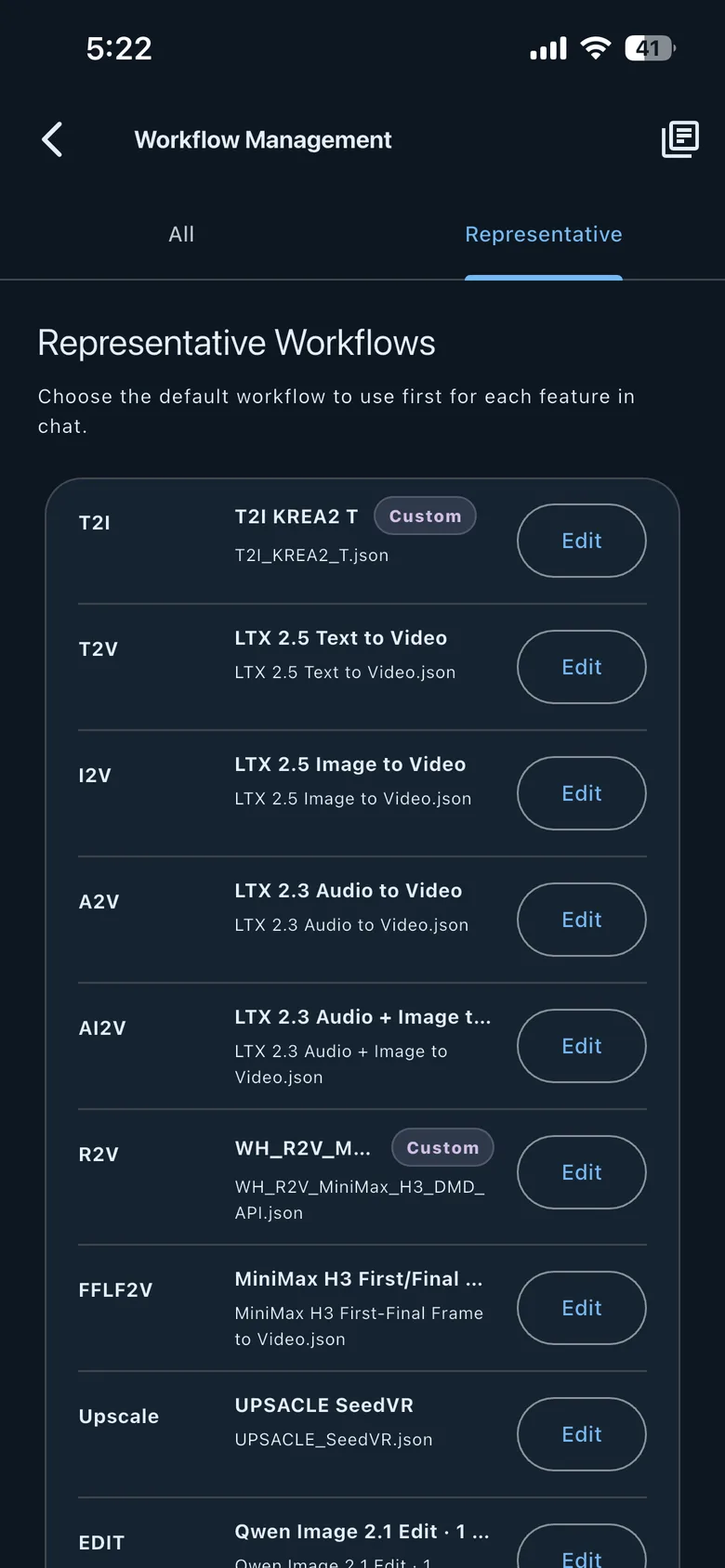
A Representative workflow is a default recommendation, not a permanent lock. You can select another enabled workflow in Chat.
If you run a different workflow and later repeat the same input conditions in the same chat, HandyComfy recommends that recently executed workflow before the Representative workflow.
The recommendation order is therefore:
- Determine the Feature that matches the current Chat input.
- Prefer a matching workflow recently used under the same conditions in this chat.
- Otherwise, recommend the Feature’s Representative workflow.
Where to manage workflows
You can open Workflow Management from either location:
Settings→Workflow Management
or:
Workflow tab→Left hamburger menu→Workflow Management icon
Both paths open the same collection of installed workflows.