
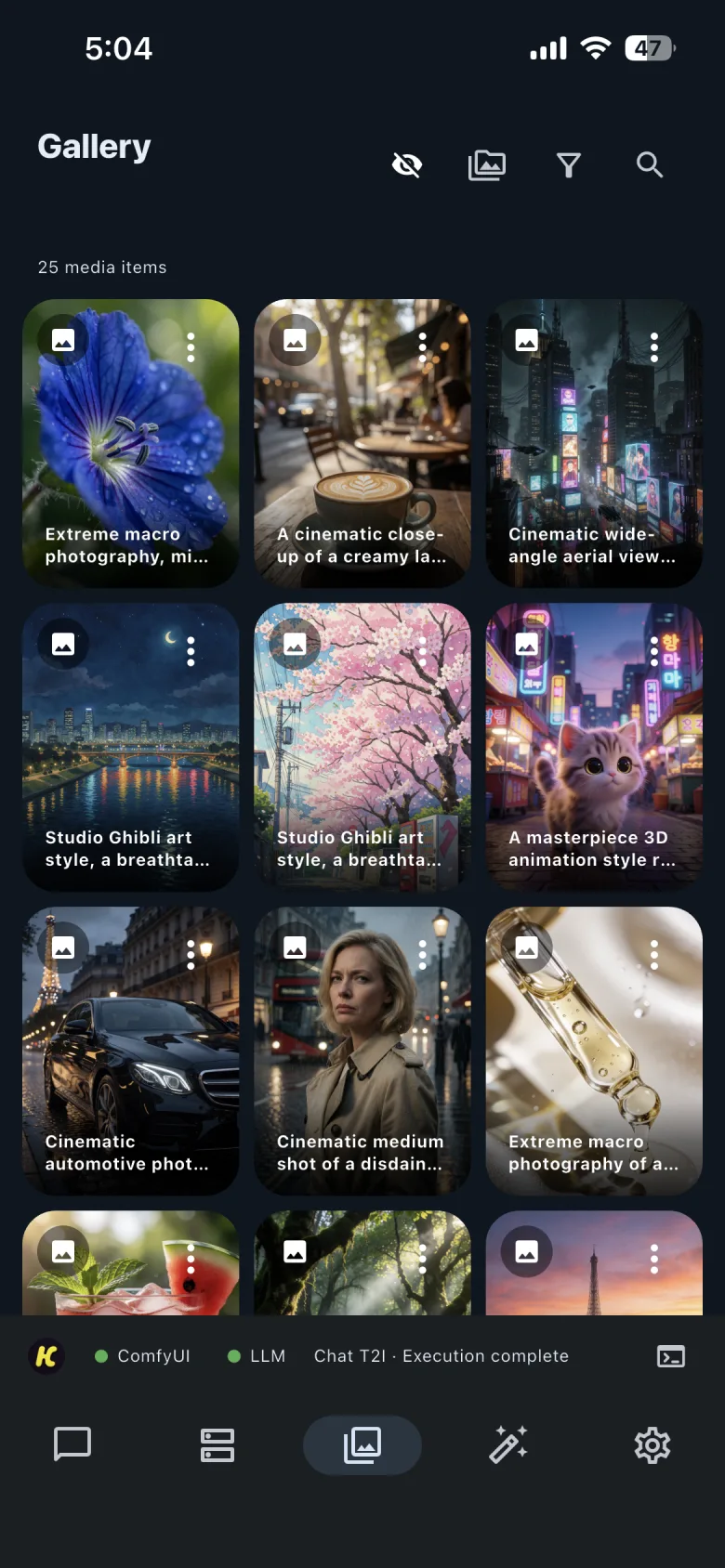
Gallery keeps the images and videos you generate through HandyComfy in one place. Open the Gallery tab to browse results from the current Workspace Profile, search their stored details, or narrow the grid with profile and tag filters.
Gallery contains HandyComfy-generated results. It does not import the phone’s photo library or existing output files from the connected ComfyUI server.
Understand Gallery storage
Every completed HandyComfy result is saved to Gallery automatically. If one request returns several images or videos, each result becomes a separate Gallery item.
Media belongs to a Workspace Profile. By default, use the current profile filter to keep each workspace’s results separate. You can also choose another profile or All Profiles when you need to look across workspaces.
Browse the result grid
The grid shows image and video thumbnails. The badge on a thumbnail identifies its media type, and a video thumbnail includes a play control.
Select a thumbnail to open the result. Select the three-dot menu on an item for organization and reuse actions.
Gallery · generated results
Use the top controls
| Control | What it does |
|---|---|
| Hidden-media visibility | Show or conceal items that you have marked as hidden. |
| Reference Media Management | Open the prompt input tool used to manage reusable reference media. |
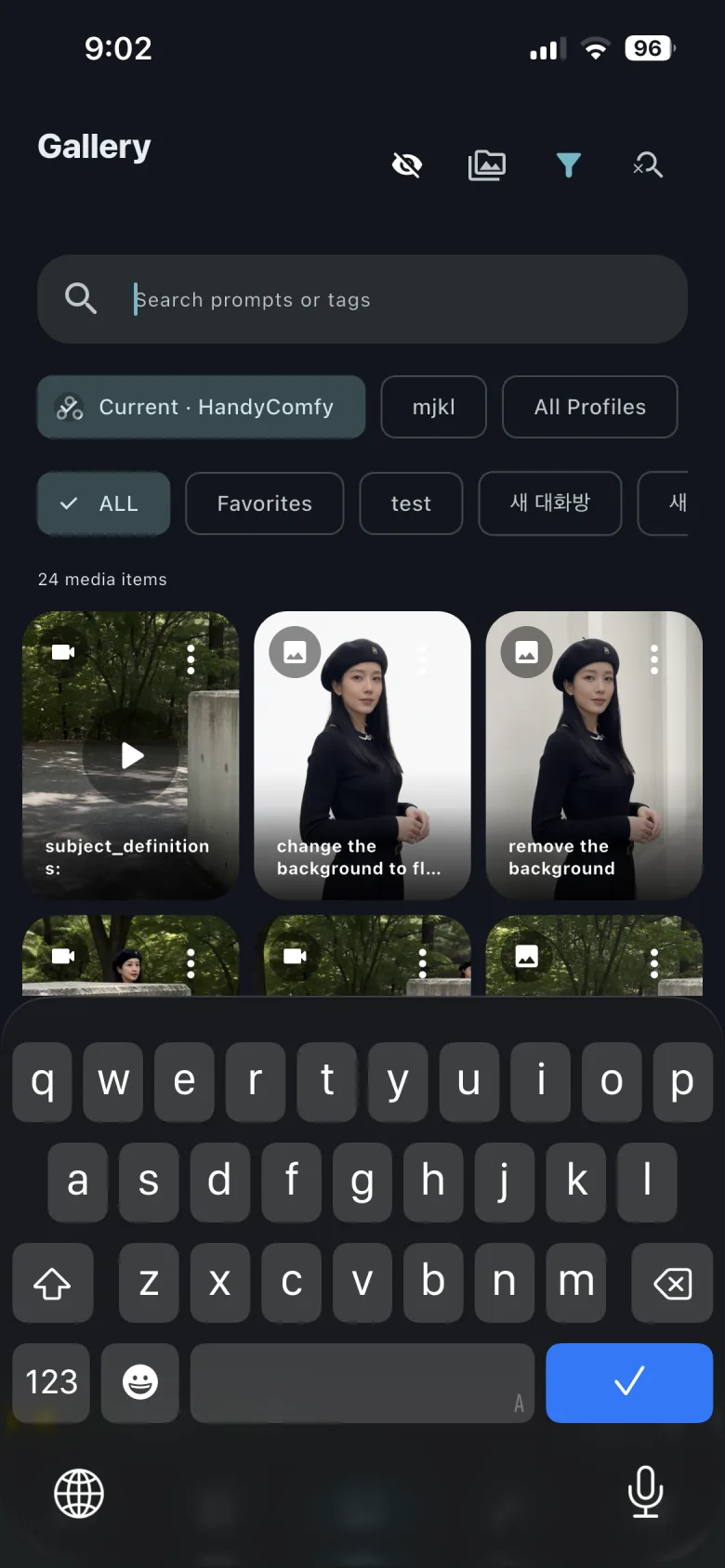
| Filter | Show filters for Workspace Profiles, Favorites, and your tags. |
| Search | Show or hide the Gallery search field. |
The Reference Media Management button does not start multi-selection. To select Gallery items, touch and hold an item or choose Select from its three-dot menu.
Filter results
Open the filter control to choose a scope:
- the current Workspace Profile
- another Workspace Profile
- all Workspace Profiles
- all media
- Favorites
- one of your tags
Profile filters and organization filters work together. For example, choose the current profile and Favorites to see favorite results from only that workspace.
Search Gallery
Select the search control to reveal the search field. Gallery can search the media title and stored metadata, including information such as prompts and tags.
Gallery · filters and search
Open a result
Select any thumbnail to open the detail viewer. From there you can inspect the full result, move through nearby items, view its stored information, or take actions such as sharing and editing.